Shadow Dungeon Controls and Settings
Official 1.0 / 1.0.1 input notes, Steam Deck, and accessibility tags — not a fake keybind bible.
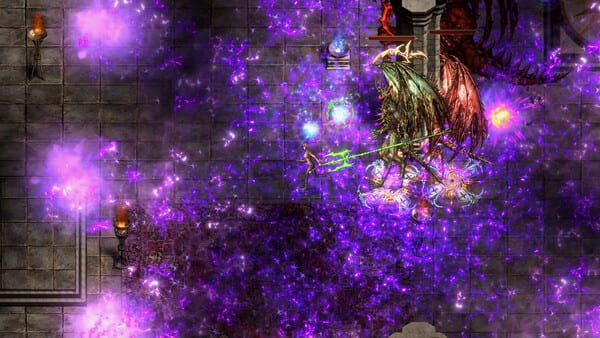
Shadow Dungeon’s 1.0 notes (August 26, 2026) spent a full section on input. Patch 1.0.1 (August 27) then fixed controllers not being recognized, frame drops while using a controller, extra screen resolutions, and a one-click backpack sorting hotkey that did not fire. This guide quotes those notes. It will not publish a full WASD grid as if it were OO Cat’s confirmed default keyboard layout.
Typical isometric ARPGs use mouse clicks and/or WASD-style movement. Shadow Dungeon explicitly added mouse movement in 1.0. Use whatever the in-game settings screen allows. Remap in the client; do not memorize a fan table.
Keyboard and mouse (what 1.0 actually said)
- Mouse movement is a 1.0 gameplay improvement.
- Customizable mouse cursor size is listed in the same notes.
- Interfaces that need paging (inventory, storage, talent tree, and more) accept mouse page switching as well as controller L1/R1.
- One button can fire all buff potions.
- 1.0.1 mentions a one-click backpack sorting hotkey — it exists, and it was broken until the patch. Look up the binding in settings rather than guessing a letter.
Skill bars, inventory, and map keys are whatever you set. This wiki will not invent Q/E/R/F or Z/X potion defaults as official.
For how those inputs feel in a fight, see Combat.
Controller (1.0 + 1.0.1)
Steam lists Full controller support. 1.0 added:
- Automatic target acquisition
- Automatic attacks
- Per-skill intelligent targeting behavior
- L1/R1 paging on inventory, storage, talent tree, and other paged UIs
- One-button buff potions
1.0.1 specifically fixed controllers not being recognized and frame drops when playing with a controller. If your pad does nothing, update to 1.0.1 and replug before you assume a dead game.
Dead zones and sensitivity belong in the game’s controller settings. This page will not invent an RB-lock-on scheme that was not in the notes.
Steam Deck
1.0 shipped Steam Deck-specific optimizations:
- Dedicated button configurations. The same button does different jobs depending on the open panel, so most actions stay on face buttons.
- Inventory open: X drops the item on the ground.
- Shop open: X sells.
- Storage open: X sends the item to storage.
- Skill panel open: X fully upgrades the selected skill.
- Adding skill points: A adds 1 point, X maxes the skill, Y maxes the skill and all of its sub-skills.
- Increased font size.
- Some maps scaled down and some props removed to raise frame rate.
1.0 also cut visual-effect particles by about 60% with roughly 40% better FPS on the general PC build; Deck shares that particle work plus the layout pass. 1.0.1 added more resolutions, which helps unusual Deck/desktop output modes.
Graphics and performance (no invented tech)
This wiki will not claim Nvidia Reflex, ray tracing, or colorblind modes. If a toggle is not in the client, it is not here.
What is documented:
- Particle reduction and FPS gains in 1.0
- Lighting pass: global lighting controls, dimmer torches, less harsh bright/dark split, reduced ground contrast for eye strain
- More screen resolutions in 1.0.1
- Store minimum/recommended GPUs (GTX 960 / RX 460 min; listed GTX 2060 / RX 5700 recommended) on Demo and System Requirements
Cap FPS in-game if the limiter exists; otherwise use your driver’s limiter. Stable frames help telegraphs more than an unverified Reflex checkbox.
Steam accessibility tags (you may use these)
Published Steam tags relevant to settings:
- Camera Comfort
- Contrast Controls
- Custom Volume Controls
- Save Anytime
- Full controller support
Use in-game volume sliders (SFX vs music) so attack cues stay audible. Save Anytime means you can stop mid-map.
Audio
The store and 1.0 notes emphasize atmosphere and, in 1.0, lighting/contrast comfort. Keep effects loud enough to hear hits. There is no official “revolutionary audio middleware” claim on this page.
After you bind
Play Getting Started maps, then the Walkthrough. If a hotkey does nothing, confirm 1.0.1. Official channels: YouTube, X, Steam.
Frequently Asked Questions
Quick answers to the most common questions about Shadow Dungeon.
Should I use keyboard and mouse or controller in Shadow Dungeon?
Both are first-class in 1.0. Mouse movement is an advertised feature. Controller gets auto-target, auto-attack, L1/R1 paging, and Steam Deck layouts. Use what you aim better with. 1.0.1 is required for several controller fixes.
Does frame rate affect damage output in Shadow Dungeon?
OO Cat has not published a frame-rate damage formula. 1.0 reduced particles for about 40% better FPS; 1.0.1 fixed controller frame drops. Higher stable FPS helps you read telegraphs. It is not a documented damage exploit.
What is the best graphics setting for competitive play?
There is no ranked mode. Turn down particles if the 1.0 reduction is not enough, use a resolution 1.0.1 added if you need it, and ignore claims of ray tracing or Reflex. Comfort tags (contrast, camera) matter more than a fake esports preset.
Can I remap all controls in Shadow Dungeon?
Remap in the in-game settings. This wiki will not list a full official default table. 1.0.1 fixed a backpack sorting hotkey that did not apply — check that bind after updating.
How do I reduce input lag in Shadow Dungeon?
Update to 1.0.1, use a wired pad if wireless drops, close heavy background apps, and pick a stable FPS. Do not enable Nvidia Reflex or AMD Anti-Lag as if they were in-game Shadow Dungeon options — they are not in the official 1.0 notes.